To create a QR code menu, put your restaurant’s menu at a public web address, generate a QR code for that address, and test the printed code on a phone. The important decision comes before printing: what should your guest see when the link opens?
This guide is for restaurant owners and teams turning a paper menu into a mobile experience. You can start with a PDF or build a digital menu with individual dishes, photographs, and descriptions. Work through the steps below before placing a code on every table.
The essentials
- Choose the menu experience before choosing the QR code.
- Keep the menu at a stable address and make prices easy to find.
- Test the printed code and the full menu on real phones.
1. Choose between a PDF and a digital menu
A QR code is a doorway to a link, not a menu format. It can open a PDF, a web page, or a restaurant menu service. A well-designed PDF can be a sensible starting point if you already have a short, readable menu and someone responsible for updating it.
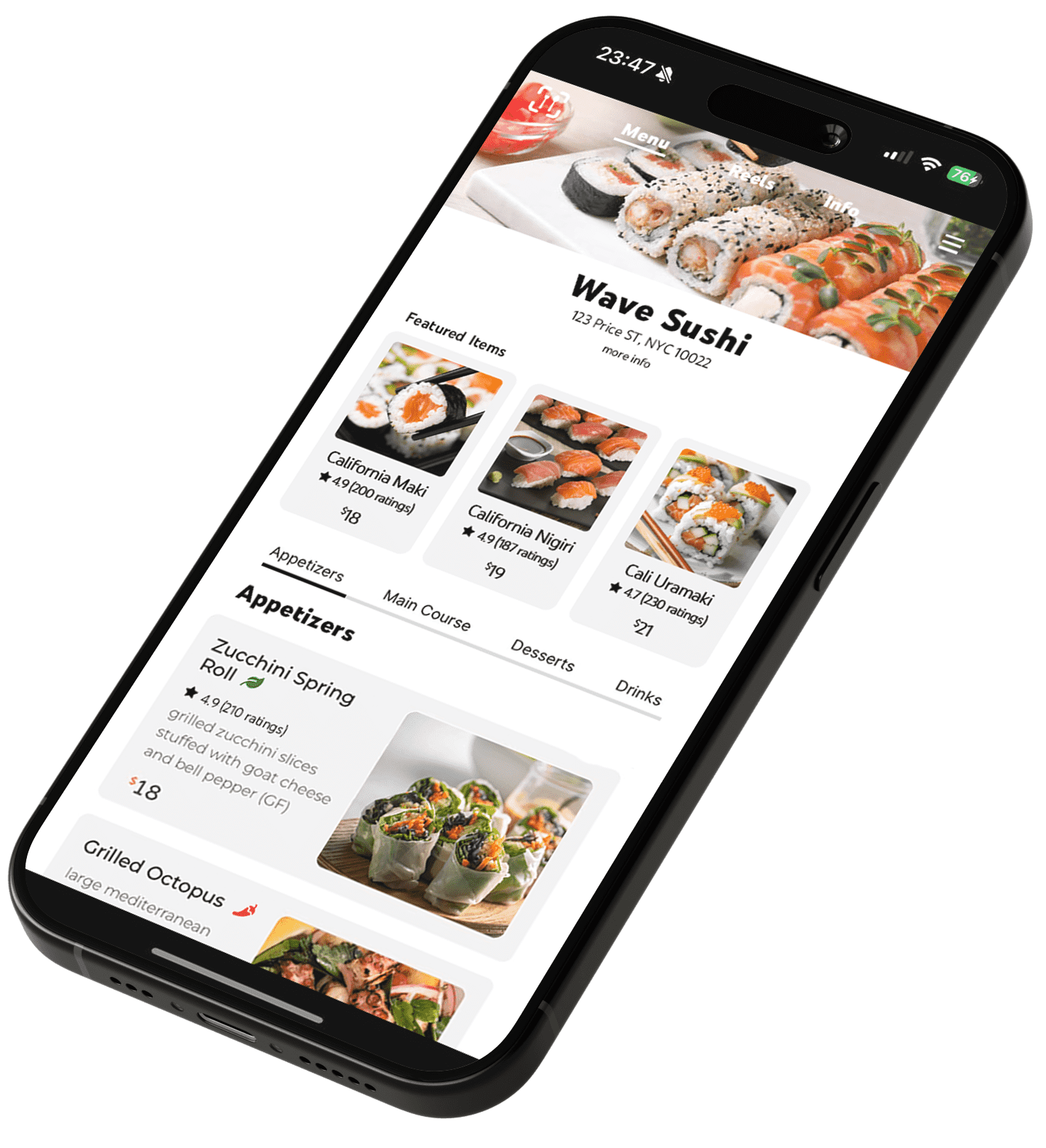
A mobile digital menu becomes more useful when diners need to browse categories, see dishes, or compare information without repeatedly zooming. Foodsi presents restaurant menus with photos, dish videos, reviews, and food details. Decide which information actually helps someone choose before adding more media.
| Consideration | PDF menu | Mobile digital menu |
|---|---|---|
| Reading | Depends on the PDF layout; zooming may be needed. | Designed to arrange content for a phone screen. |
| Dish photos | Can be included, but add to the document size. | Can accompany individual dishes. |
| Changes | Replace the file at the same stable address. | Update the menu through your provider’s workflow. |
| QR code | Can stay the same if its destination stays the same. | Can stay the same if its destination stays the same. |
2. Prepare one reliable list of dishes
Start from the menu the kitchen currently serves. Put each dish in a working sheet with its category, name, description, price, and availability. Ask one person to own this list so a change does not leave the paper menu, website, and QR menu showing three different prices.
Try five representative items first: a starter, a main, a side, a dessert, and a drink. This small trial helps you spot awkward categories and missing information before preparing the full menu. Use the same dishes when comparing a PDF with a mobile menu.
- Use names guests can recognize, then explain unfamiliar terms.
- State what comes with the dish, including sides that are included.
- Check prices, portion descriptions, and options with the restaurant team.
- Only display ingredient and dietary information the restaurant has verified.
3. Add photographs and descriptions that agree
Choose photographs of the dishes you actually serve, in their usual portions. A beautiful image of a different recipe creates an expectation your kitchen cannot meet. Keep backgrounds and framing consistent so guests can compare items without visual clutter.
Use the description for details a photograph cannot explain: the cooking method, a distinctive ingredient, or whether a sauce comes on the side. For example, “Grilled mushrooms on sourdough with parsley butter” tells a guest more than “Our famous toast”. Add a dish video when movement reveals something useful, such as a sauce being poured, rather than making every item a video.
For the words alongside each photo, use our guide to writing restaurant menu descriptions. It includes ten examples you can adapt to your dishes.
4. Put the menu at a stable public address
Whether you choose a hosted PDF or a digital menu service, make sure the final address opens without a staff login. Test it in a private browser window. Check that the URL belongs to the correct restaurant and, if you have several locations, the correct branch.
If you are setting up Foodsi, contact our team with your current menu and the experience you want to offer. We can discuss how to present your dishes and the setup for your restaurant. Agree how your team will maintain the menu and which public link should be printed before ordering signs.
A PDF can also be updated without changing its QR code when the replacement stays at the same URL. The important thing is the address: renaming a file, moving it to another folder, or changing providers can break an existing printed link.
5. Generate the QR and test the printed version
Use the final public URL to create your QR code. Check the destination before downloading the graphic, and keep a copy of the address alongside the artwork. If you use a third-party QR provider, check whether the code depends on a subscription, trial period, or redirect service.
Print a sample on the material you intend to use. Put it where a guest would sit and scan it in the restaurant’s normal lighting. Glare, a busy background, a damaged sticker, or poor contrast can make a code harder to read. Leave clear space around the code and include a short explanation such as “Scan to view our menu”.
On iPhone, the Camera app can recognize a QR code and offer its link. Apple’s scanning guide below explains the process. Also try an Android phone rather than assuming the same test covers every device.
6. Check the experience before your next service
Scanning successfully is only the beginning. Ask a colleague who did not prepare the menu to find a particular dish, check its price, and return to another category. Watch where they hesitate and correct that point before adding more features.
- Open the menu on Wi-Fi and mobile data.
- Confirm that every category, photograph, and price loads.
- Read it on a smaller phone without pinch-zooming.
- Test the printed QR, not just an image on your laptop.
- Make a harmless menu update and confirm the same code still opens it.
- Keep a readable alternative for guests who cannot use a phone.
7. Give menu updates an owner
Decide who changes prices, marks unavailable dishes, and checks the menu before service. Keep the original photographs and your working dish list in a shared place. When a recipe or portion changes, review its description and image together.
Start with a clear, accurate menu and improve it as guests use it. A QR code menu is most useful when it makes a familiar restaurant task easier: understanding what is available and choosing something to enjoy.
Common questions
Can I create a QR menu from a PDF?
Yes. Host the PDF at a public address and create a QR code for that link. Check readability on a phone, file loading, and who will replace the PDF when the menu changes. A QR code does not automatically make a desktop-sized document mobile-friendly.
Do I need to print a new QR code when a price changes?
Not if the destination URL stays the same and the menu at that address is updated. This can work for both a PDF and a digital menu. Test the existing printed code after each change rather than assuming that the URL stayed unchanged.
Should my QR menu replace every printed menu?
Keep an alternative for guests who do not have a suitable phone, signal, battery, or a comfortable way to read the screen. Your team should be able to explain the menu without requiring a guest to use a device.